Schedule a form in the Daily Schedule so that your team can access tasks at exactly the right time. This ensures consistency in form completion and supports operational efficiency.
Start from: The Compliance overview.
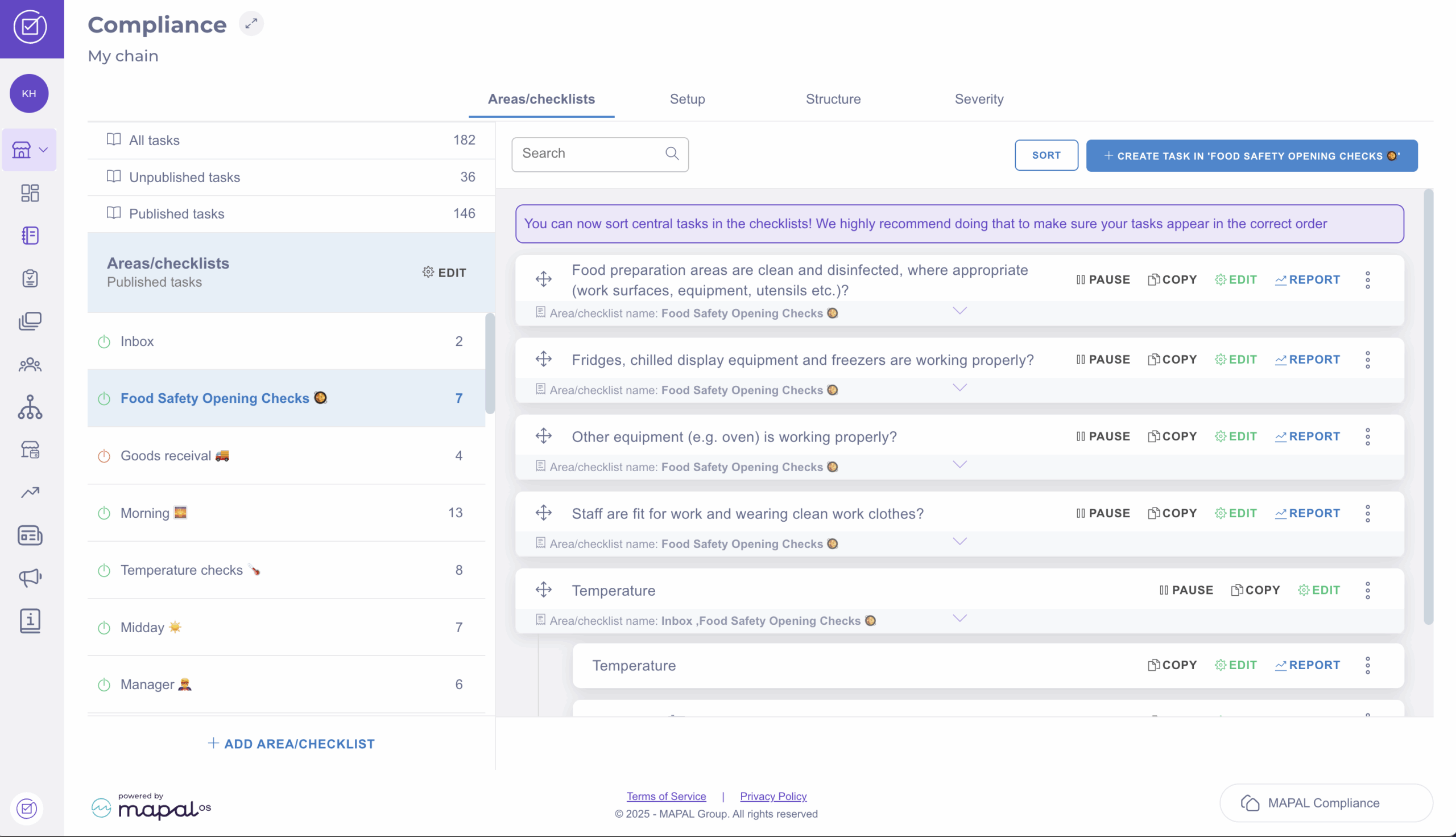
- Navigate to Tasks > Areas / Checklists.
- Select the specific checklist where you want to publish the task.
- Select + Create task in '[name of the checklist]'.
- In the New Task screen, complete the General Setup.
- Scroll down to Answer options and set the Answer Type to Button.
- Select the relevant form from the Start form dropdown list. This action will link the task to the chosen form and create a new revision of that form when the answer is triggered.
- In the Scheduling step, define the Frequency or choose the Days of the week you want the task and form to appear in the Daily Schedule.
- Once you have completed the steps, select Save in the top right-hand corner to finalise and activate the task.
Originally published at https://help.mapal-os.com/compliance/central-level/central-tasks/areas-checklists/schedule-a-form-in-the-daily-schedule/
0
0
Was this article helpful?
0 out of 0 found this helpful
Articles in this section
- Create a task - select an area and create a task within it
- Enable or disable an area
- Create an area/checklist
- Create new lists for dropdown tasks
- Add tasks from the central library
- Create a task and move it to the relevant area
- Create a temperature task
- Schedule a form in the Daily Schedule
- Pause a task at a central level
- Change the procedure or module of a task
Add comment
Please sign in to leave a comment.