Mapal One allows workers to find and interact with their colleagues so that they can collaborate and build stronger workplace connections.
Start from: The Mapal One dashboard.
- Navigate to Company > My colleagues.
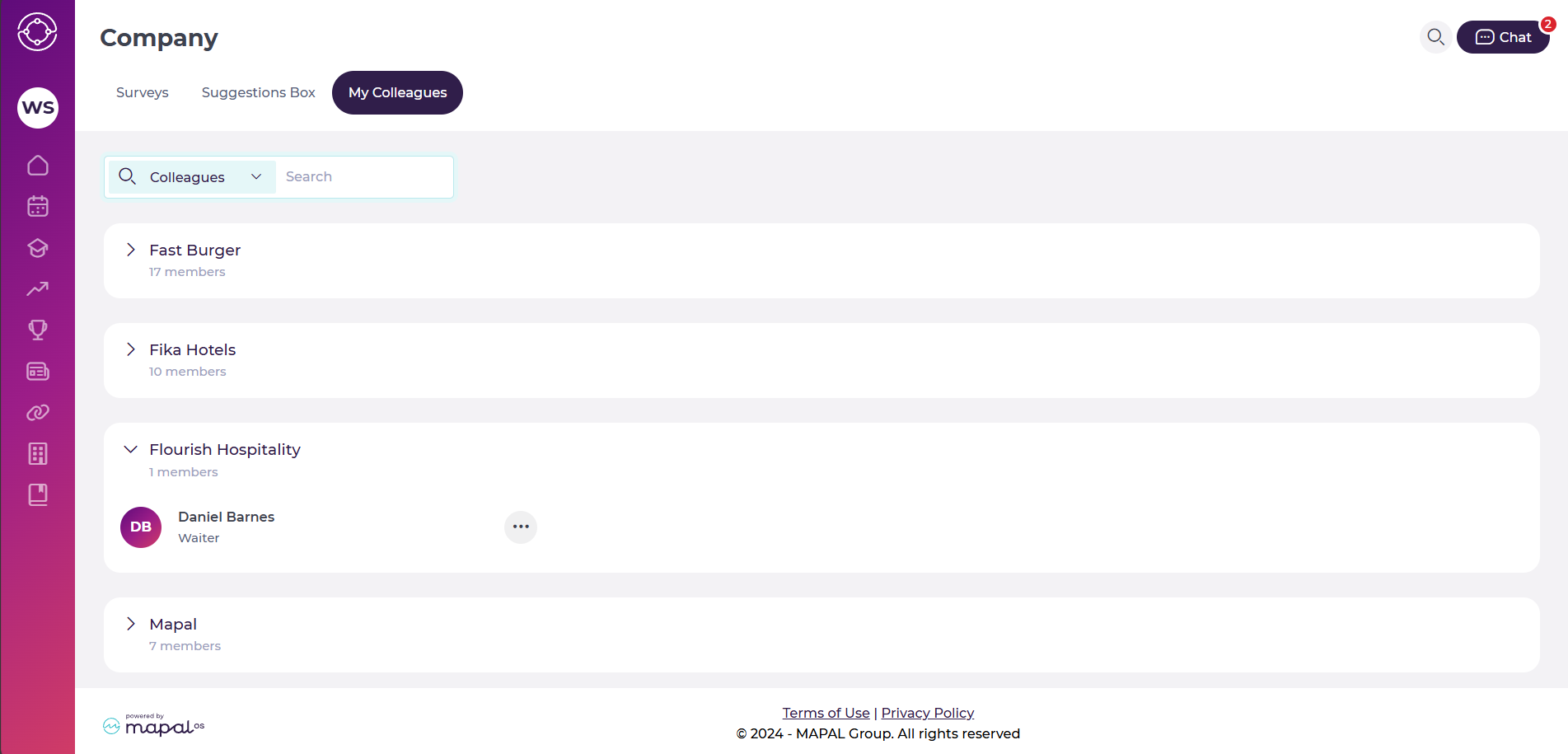
Find a colleague
The My Colleagues section offers an organised view of team members, grouped by location, team, or department. Key features include:
- Browse by Location: Select a specific location to view the list of colleagues assigned to that branch.
- Search Functionality: Use the search bar to quickly locate colleagues by name or position, saving time when looking for specific team members.
Interact with a colleague
Once you've identified a colleague, several interaction options are available:
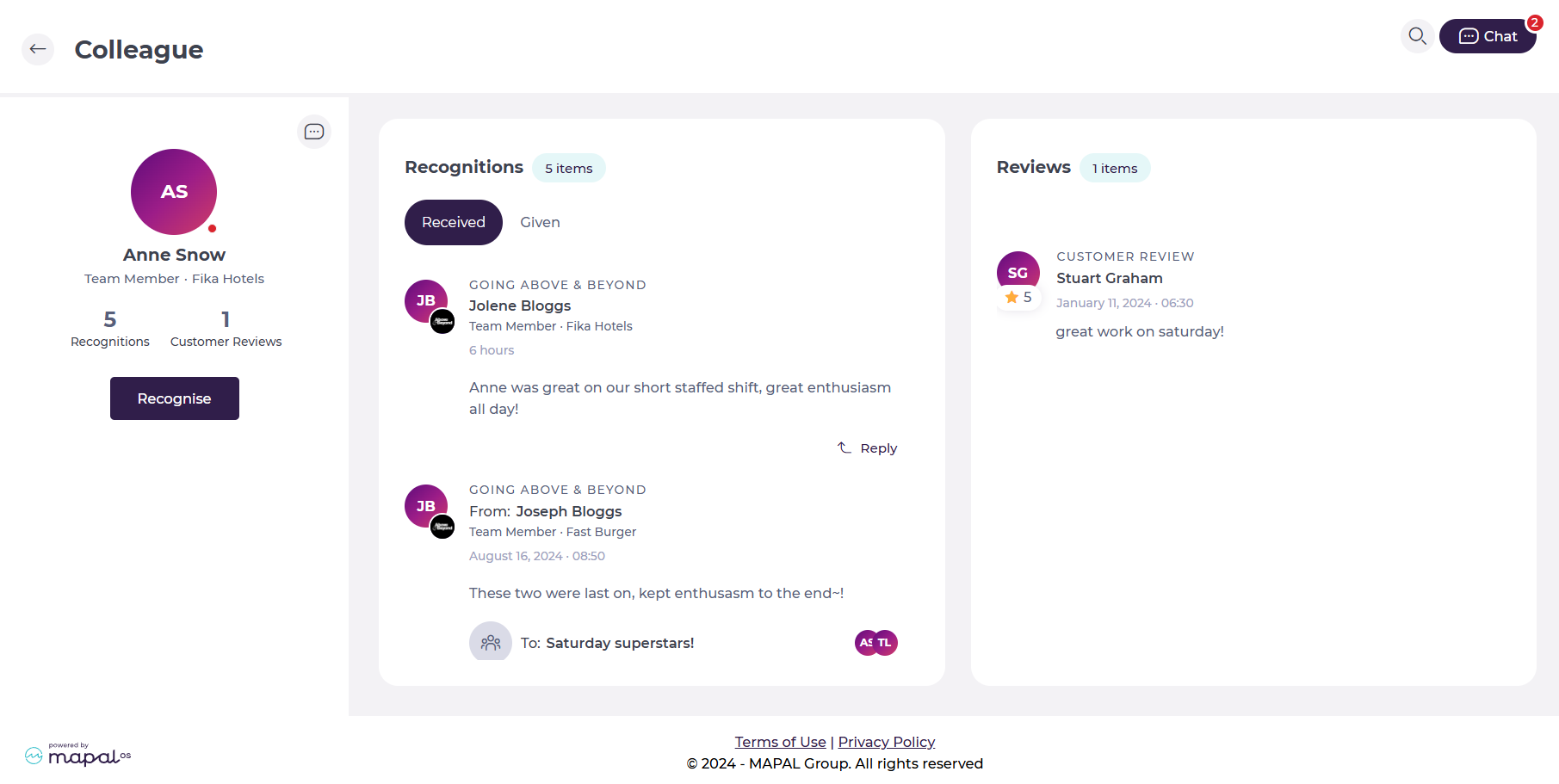
Viewing Their Profile
- Select your colleague’s name to open their profile.
- The profile includes key information such as their role, department, and contact details, as well as the recognitions and reviews.
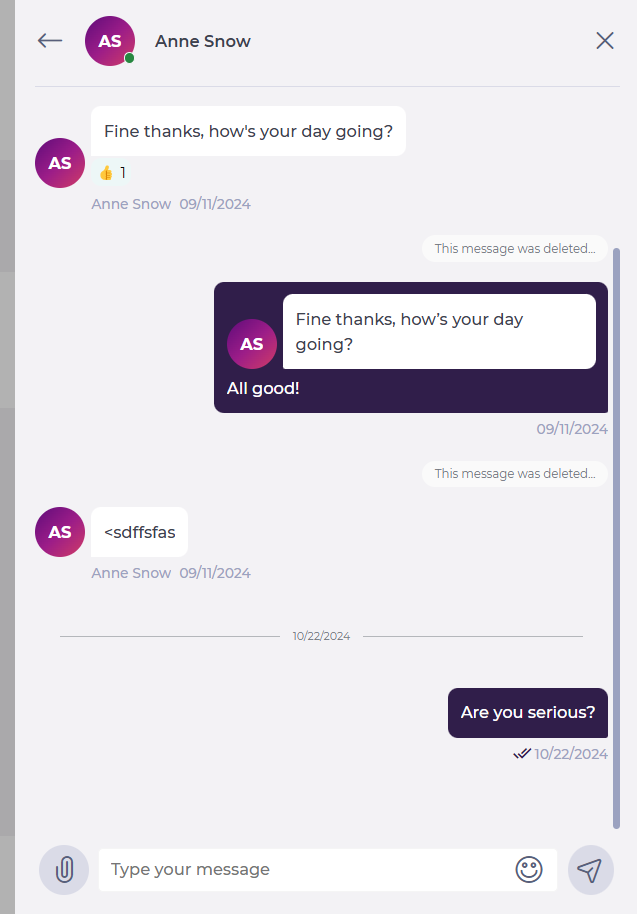
Start a chat
- Select the three dots button beside your colleague’s name.
- Chat: Open a new chatbox or access an existing conversation with that colleague.
- You can send text messages, images, files, emojis, and GIFs.
- Voice notes: If enabled by your administrator, a microphone icon will appear in the chat. Select and hold the icon to record a voice note, then release to send. You can also play received voice notes directly in the chat window.
Recognise a colleague
- Select the three dots button beside your colleague’s name.
- Choose Recognise to open the Give Recognition form.
- Select a reason for the recognition.
- Select your Relationship with this colleague (same level, superior, below, or another colleague)
- Write a message.
- Optionally, you can upload up to 10 images for context and emotional impact (Maximum file size: 100mb. Allowed file types: .png, .jpg, .jpeg)
- Select Send.

Originally published at https://help.mapal-os.com/mapal-one/company-mapal-one/my-colleagues/find-and-interact-with-my-colleagues/
0
0
Was this article helpful?
0 out of 0 found this helpful
Add comment
Please sign in to leave a comment.