Start from: The Analytics dashboard Navigate to Configuration > Product Groups. In the Product Groups screen, select a preferred language and a specific product type (e.g. Raw Materials, or Sale Items) Manage families Product families are the top-level categories that contain one or more subfamilies. Each family has a unique identifier. Create a Family Select […]
Start from: The Analytics dashboard
-
Navigate to Configuration > Product Groups.
-
In the Product Groups screen, select a preferred language and a specific product type (e.g. Raw Materials, or Sale Items)
Manage families
Product families are the top-level categories that contain one or more subfamilies. Each family has a unique identifier.
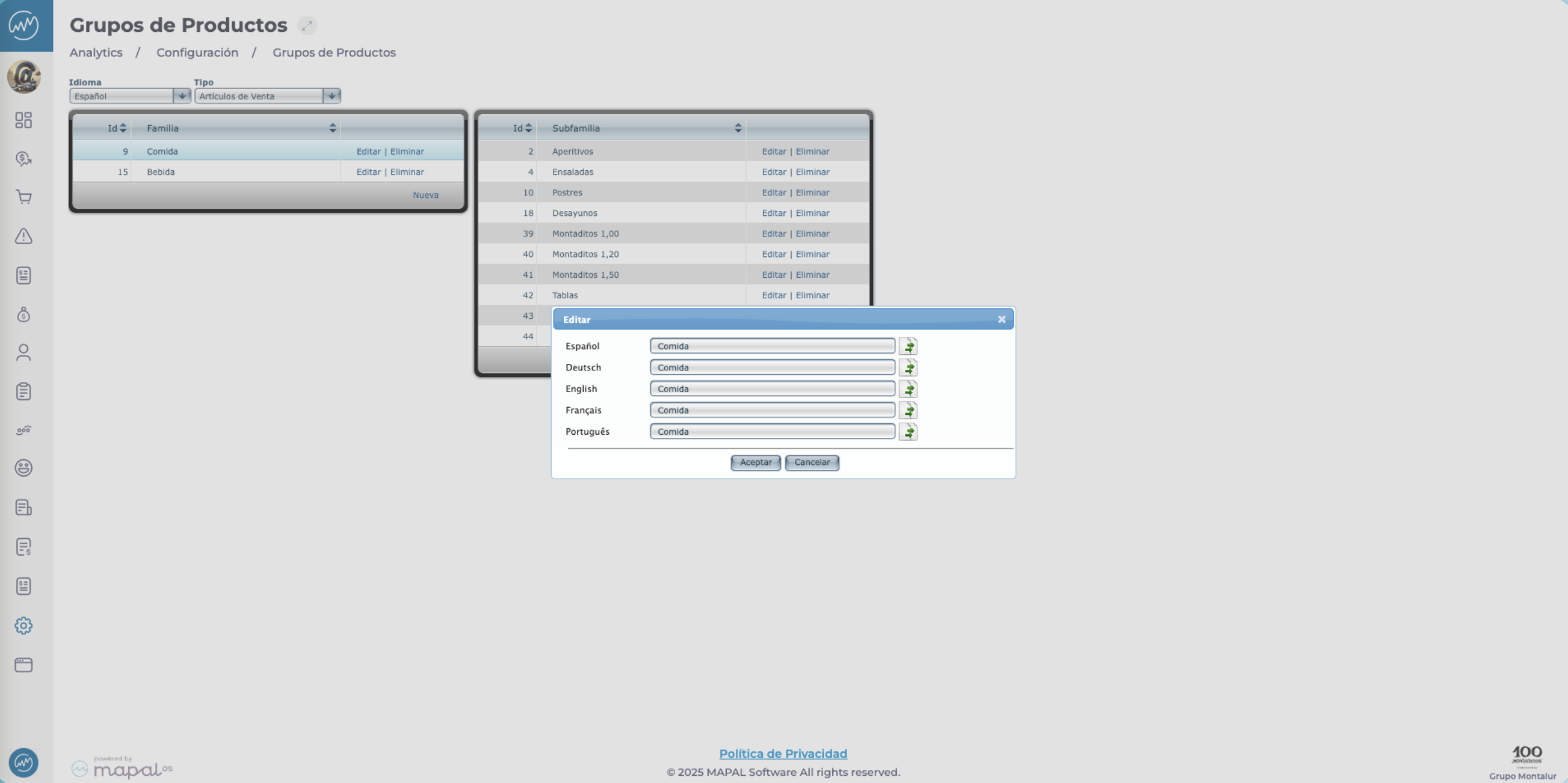
Create a Family
-
Select New under the Family table.
-
Assign a Name to the Family. You can also add the translations of the name here.
-
Select Accept. Your new Family will now appear in the table.
Edit a family
-
Select Edit in the Family’s row.
-
Change the name or translations as required.
-
Select Accept. The updated family will now appear on the list.
Delete a family
-
Select Delete in the Family’s row.
-
In the confirmation window, select Accept. The family will now disappear from the list.
Note: You can’t delete families that contain subfamilies.
Manage subfamilies
Subfamilies are subcategories within a family and cannot be shared across multiple families.
Create a Subfamily
-
Select New under the Subfamily table.
-
Assign a Name to the Subfamily. You can also add the translations of the name here.
-
From the Family dropdown, select the family to which this subfamily belongs.
-
Select Accept. Your new Subfamily will now appear in the table.
Edit a Subfamily
-
Select Edit in the Subfamily’s row.
-
Change the name or translations as required.
-
Select a new Family from the dropdown list if needed.
-
Select Accept. The updated subfamily will now appear on the list.
Delete a Subfamily
-
Select Delete in the subamily’s row.
-
In the confirmation window, select Accept. The subfamily will now disappear from the list.
Originally published at https://help.mapal-os.com/analytics/configuration/product-groups/organise-your-items-into-product-groups/
Add comment
Please sign in to leave a comment.