Mapal One allows workers to create absence requests so that time off is requested in a structured way and managers can plan shifts around absences with minimal extra admin.
Start from: The Mapal One dashboard.
Open the absence request form
- Navigate to Shifts & Absences from the main menu.
- On the Next up panel, select the Holidays & Absences tab (if applicable in your view).
- Tap the floating action button ( + ).
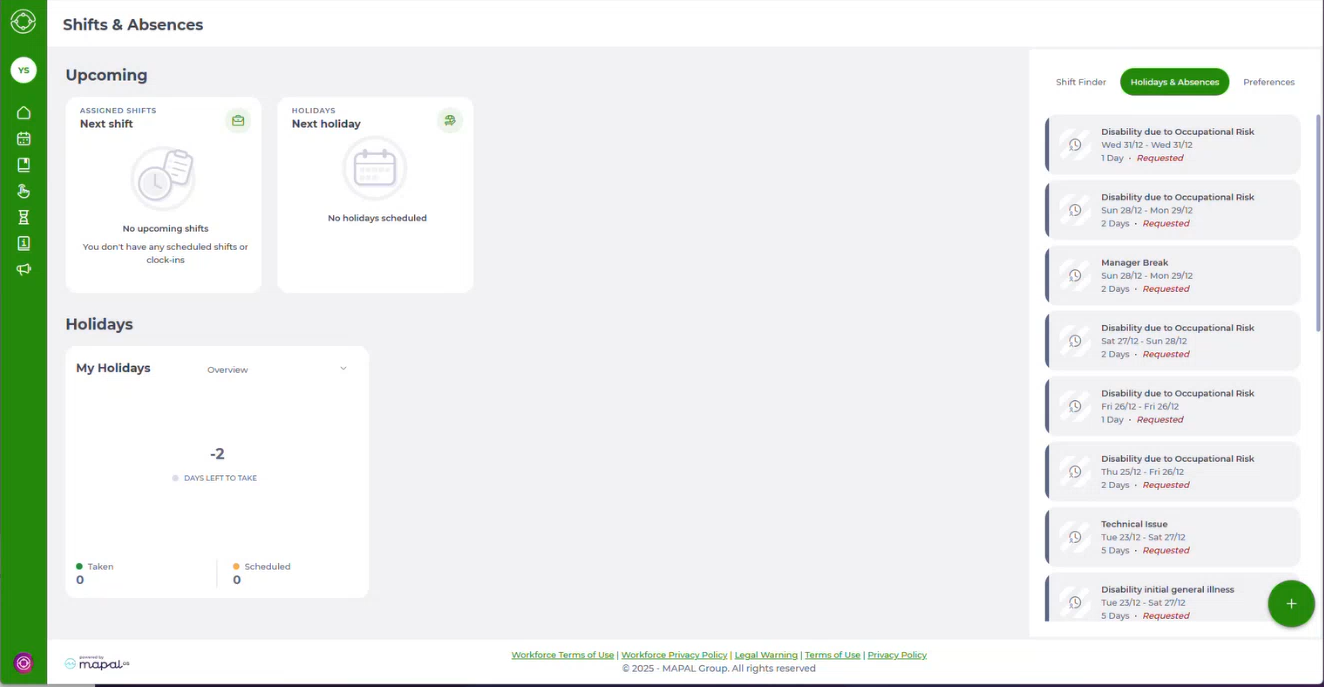
- Select Add absence (or Add if shown directly).
- The Add absence drawer opens.
Complete the absence details
In the Add absence drawer, fill in the fields shown:
- Absence type
- Select the appropriate type (for example: Holiday, Sick leave, Unpaid leave).
- Note: Some absence types may require documentation (e.g. medical certificate) to be approved.
- Dates
- Select the start date and end date of your absence.
- If it is a single day, use the same date for start and end.
- If your organisation allows it, you may also choose specific times for partial-day absences.
- Comments
- Add any information that will help your manager understand the request (for example: “Family event” or “Medical appointment in the morning”).

- Documents (when required)
- If the absence type requires proof (for example, sick leave), upload the relevant document using the Documents field.
- Maximum file size allowed: 10MB.
- Allowed document types: .pdf, .doc, .docx, .xlx, .xlsx, .ppt, .pptx, .csv.
- Once a document is uploaded, a documentation code is generated. This helps payroll and HR classify the absence correctly.
- If the absence type requires proof (for example, sick leave), upload the relevant document using the Documents field.

Submit the request
- Review all details entered.
- Select Request.
- Your absence request is now submitted and will appear in your Holidays & Absences history.
Managers see the request in the Absences section of the Workforce app and can review, edit, or eliminate it there. To know more about how managers can manage absence requests, see Record absenteeism incidents in the Workforce App.
Note: Some absence types cannot be submitted without the required documentation or documentation code. Providing this information at the point of request helps ensure your absence is recorded correctly the first time and avoids delays in approval.
Originally published at https://help.mapal-os.com/mapal-one/shift-and-absences/create-a-new-absence-request/
Add comment
Please sign in to leave a comment.