Analytics allows operations managers to measure and analyze employees' mood so that they can ensure the wellbeing of their team. The Employee Sentiment section helps them track and assess employees' mood using structured data and visual insights.
Start from: The Analytics dashboard.
- Navigate to Employee Sentiment in the main menu.
- A grid will show you employee sentiment data according to the parameters currently set.
- Select the Parameters button to display the information you need. In this window, you can:
- Define the Analysis Type based on how you want to segment the results:
- By Business UnitView sentiment trends across different company locations or teams.
- By QuestionAnalyze responses to specific survey questions.
- By Labour CategoryAssess sentiment based on job roles or employee classifications.
- Choose the preferred View to display sentiment insights:
- ValuationShows overall employee sentiment scores.
- e-NPSMeasures employee Net Promoter Score to assess engagement.
- Entry vs ExitCompares sentiment data from onboarding vs. exit surveys.
- Select a specific Area to focus the analysis:
- Global OverviewView sentiment trends across the entire organization.
- Company-Level BreakdownAnalyze data at the company-wide level.
- FacilitiesSegment results based on individual workplace locations.
- GroupsExamine sentiment across specific employee groups or teams.
- LeadersAssess leadership effectiveness based on employee feedback.
- Motivations & SatisfactionIdentify key drivers of engagement and satisfaction.
- Choose whether to focus on specific questions, labour category groups, or individual labour categories to gain deeper insights.
- Select a Time Period for the analysis. Set a custom date range or predefined time periods.
- Once you have completed the parameterization, select Accept to save it. The information you need will now be displayed.
- Use the Filter by Business Unit feature to refine the data by specific centers.
Analyze sentiment trends
- Select a Variable from the grid by ticking its checkbox.
- Click the Evolution button at the top left of the screen.
- The evolution trend data will appear, showing how sentiment has changed over time.
Export and share Reports
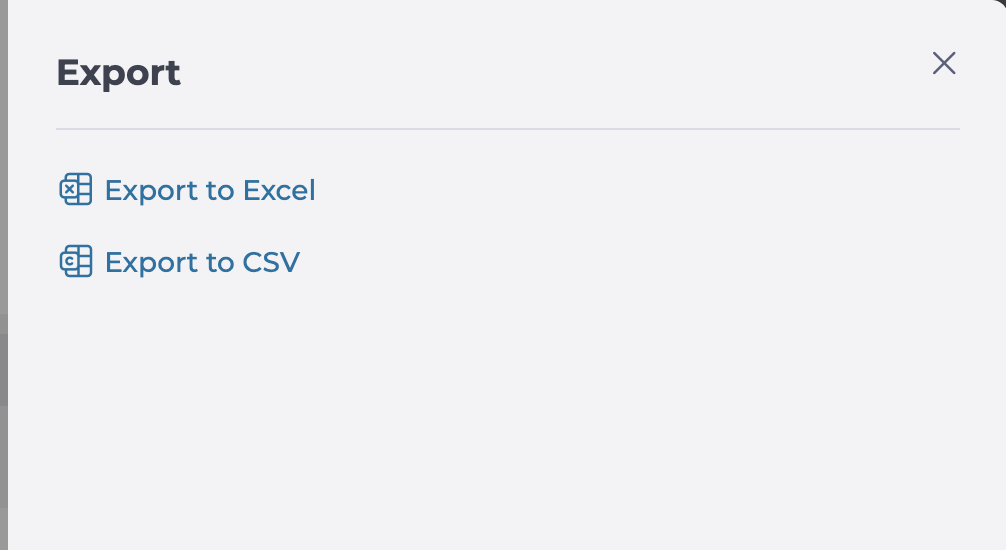
- Select the Export button to generate a report.
- Select the desired format (Excel or CSV).
Originally published at https://help.mapal-os.com/analytics/employee-sentiment/measure-and-analyze-employee-sentiment/
0
0
Was this article helpful?
0 out of 0 found this helpful
Add comment
Please sign in to leave a comment.