Add multiple upcoming training sessions quickly and easily, using the batch upload feature. Here we look at how to carry out this process effectively.
Start from: the Flow Learning dashboard
- Select Learning & Development > L&D settings from the main menu.
- Scroll down to External Training Upload.
- Select View (the cog icon).
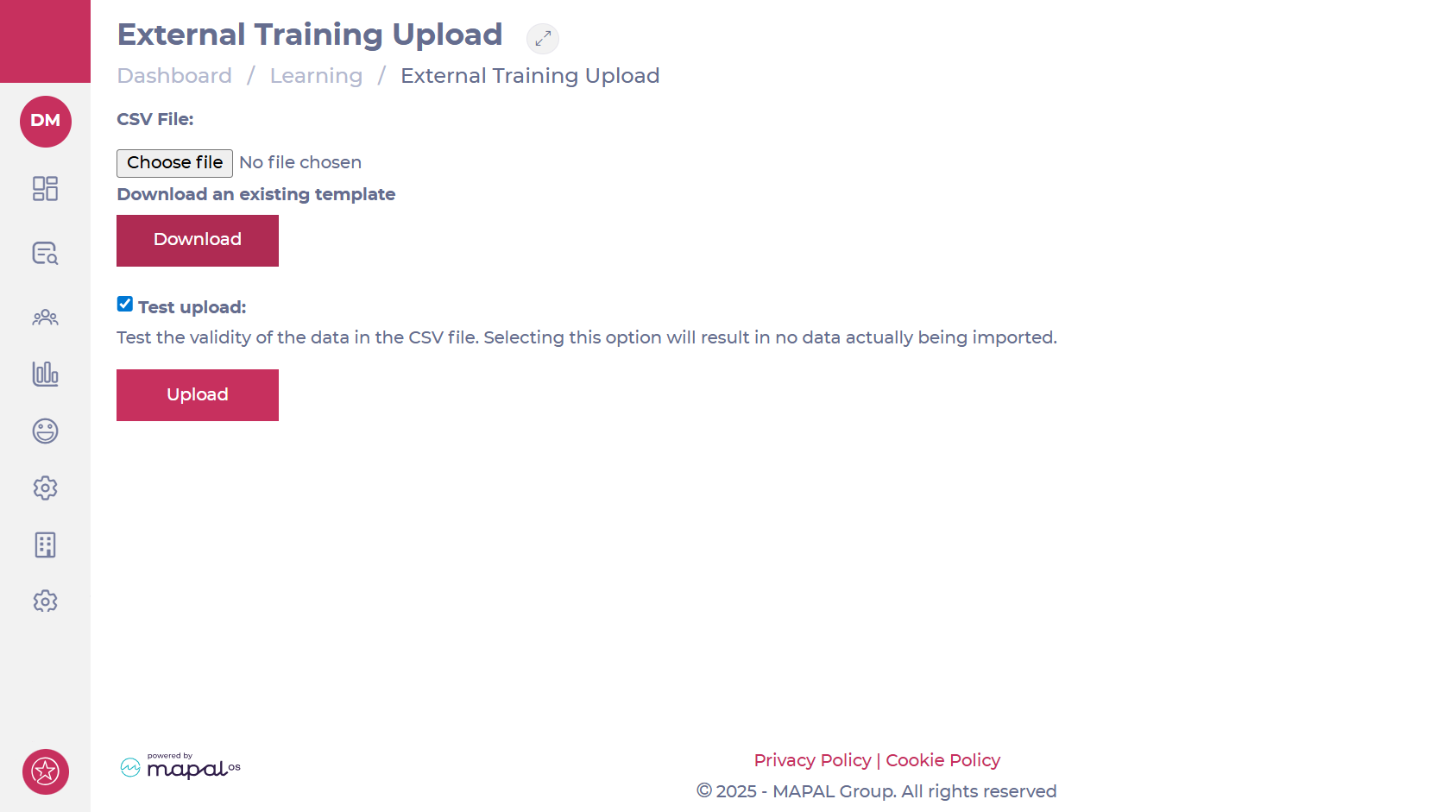
Once on the External Training Upload page, you can download a CSV file template to populate with information on the external training you wish to upload in bulk.
- Under "CSV file", select Download to save your CSV template.
- Save the file to a safe place on your device.
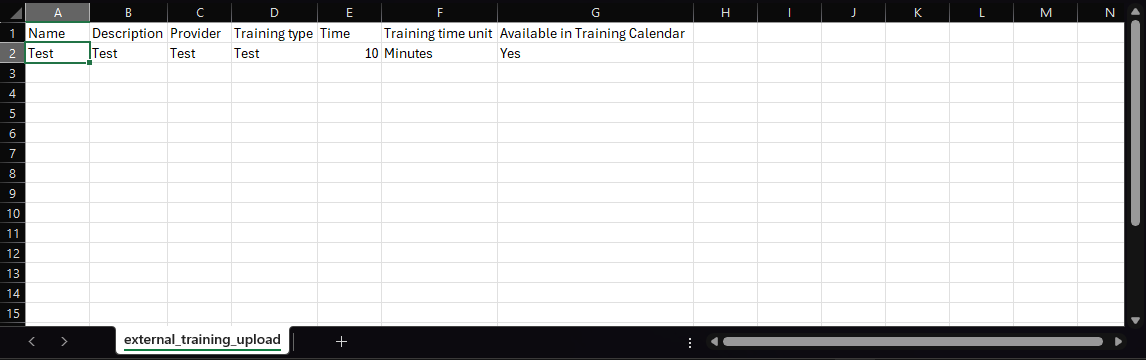
Uploading your CSV file
Once you have your CSV file ready to upload:
- Select Choose File to locate the CSV file from your device.
Once you have uploaded it successfully, you must run a test upload to make sure the file will work.
- Select the Test upload checkbox then select Upload. This will test the validity of the data in the CSV file without importing anything.
Note: when uploading External Training as a batch, the ‘Available in the Training Calendar’ field will default to ‘no’ if there is no set value in the field.
If the test upload is successful, you’ll receive a notification to confirm this. However, If the test is unsuccessful you will have to remove the uploaded CSV, fix the errors, re-upload the amended file and run the test again.
Only when the CSV file is correct:
- Untick the Test upload checkbox.
- Select the Choose file button again and upload your CSV file.
- A pop-up upload confirmation message will appear.
Your External training is now uploaded and is available on the External Training page at Learning & Development > L&D Settings > External Training.
Originally published at https://help.mapal-os.com/flow-learning/learning-and-development/landd-settings/external-training-l-d-settings/upload-external-training-as-a-batch/
Add comment
Please sign in to leave a comment.