Planifiez un formulaire dans le Plan quotidien afin que votre équipe puisse accéder aux tâches au moment opportun. Cela garantit la cohérence dans la complétion des formulaires et favorise l'efficacité opérationnelle.
Start from: The Compliance overview.
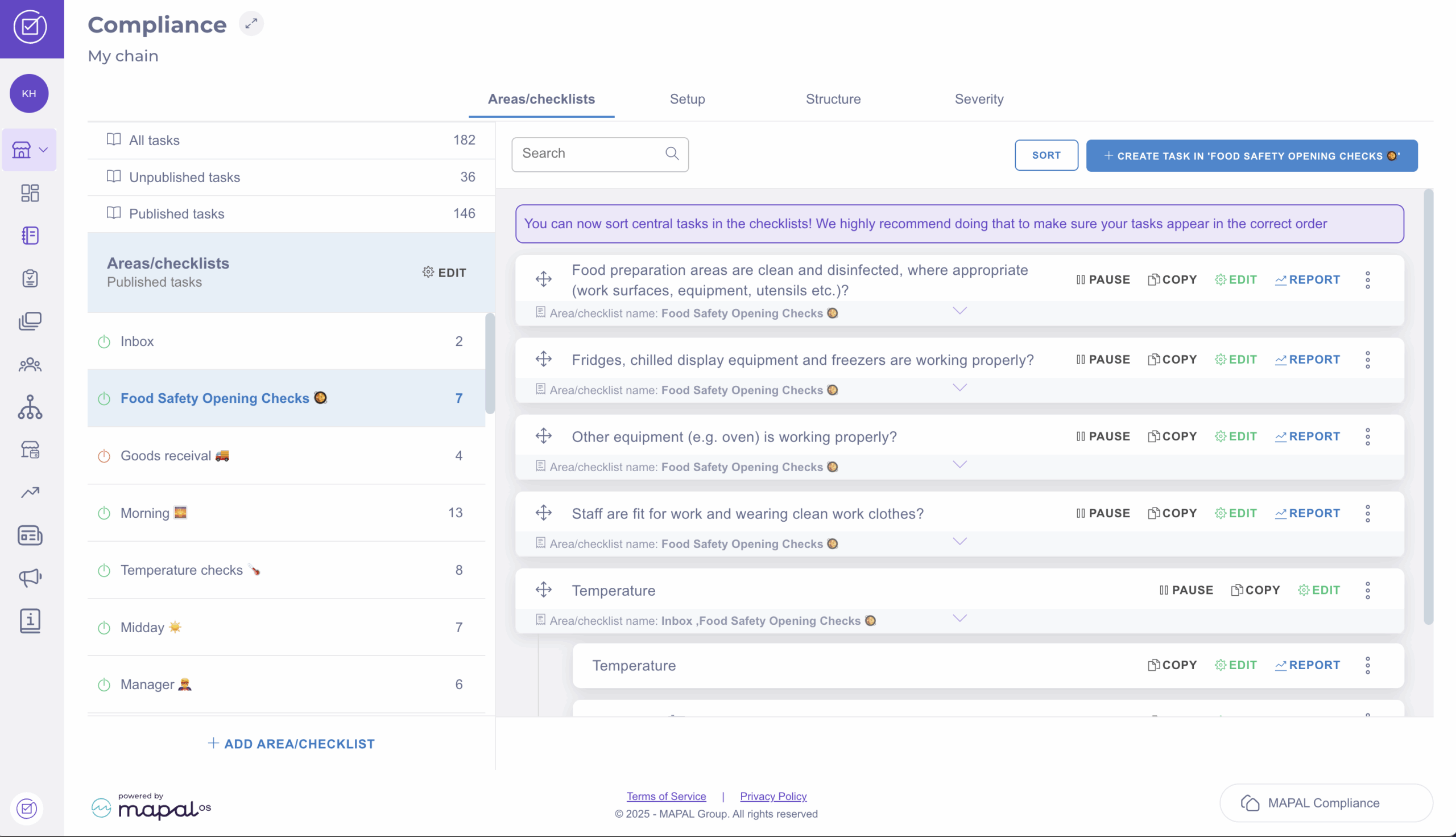
- Navigate to Tasks > Areas / Checklists.
- Select the specific checklist where you want to publish the task.
- Select + Create task in '[name of the checklist]'.
- In the New Task screen, complete the General Setup.
- Scroll down to Answer options and set the Answer Type to Button.
- Select the relevant form from the Start form dropdown list. This action will link the task to the chosen form and create a new revision of that form when the answer is triggered.
- In the Scheduling step, define the Frequency or choose the Days of the week you want the task and form to appear in the Daily Schedule.
- Once you have completed the steps, select Save in the top right-hand corner to finalise and activate the task.
Originally published at https://help.mapal-os.com/fr/compliance-fr/niveau-central/taches/zoneslistes-de-controle/planifier-un-formulaire-dans-le-planning-quotidien/
0
0
Cet article vous a-t-il été utile ?
Utilisateurs qui ont trouvé cela utile : 0 sur 0
Articles dans cette section
- Créer une tâche - Sélectionner une zone et y créer une tâche
- Activer ou désactiver une zone
- Créer une zone/liste de contrôle
- Créer de nouvelles listes pour les tâches à menu déroulant
- Ajouter des tâches depuis la bibliothèque centrale
- Créer une tâche et la déplacer vers la zone appropriée
- Créer une tâche de température
- Planifier un formulaire dans le planning quotidien
- Mettre une tâche en pause au niveau central
- Modifier procédure ou module d'une tâche
Ajouter un commentaire
Vous devez vous connecter pour laisser un commentaire.