Mapal One is your all-in-on employee development platform, where you can view all the learning items assigned to you and your training schedule, view and manage all aspects of your professional development, check your company’s feed, send suggestions and access your library, where your learning certificates, module downloads and important company documents are stored. This article gives an overview of the main dashboard.
Start from: the Mapal One main dashboard.
When you sign in, you’ll see the Mapal One dashboard, which includes:
Dashboard navigation
At the top of the dashboard, the header navigation lets you choose how to view your content:
- Dashboard: shows the complete dashboard view.
- Required: filters to only show mandatory learning with due dates.
- Recommended: filters to show optional learning.
- Favourites: filters to show items you’ve marked as favourites, so you can access them quickly.
To know more about how to use the filters, see Using filters in Mapal One.

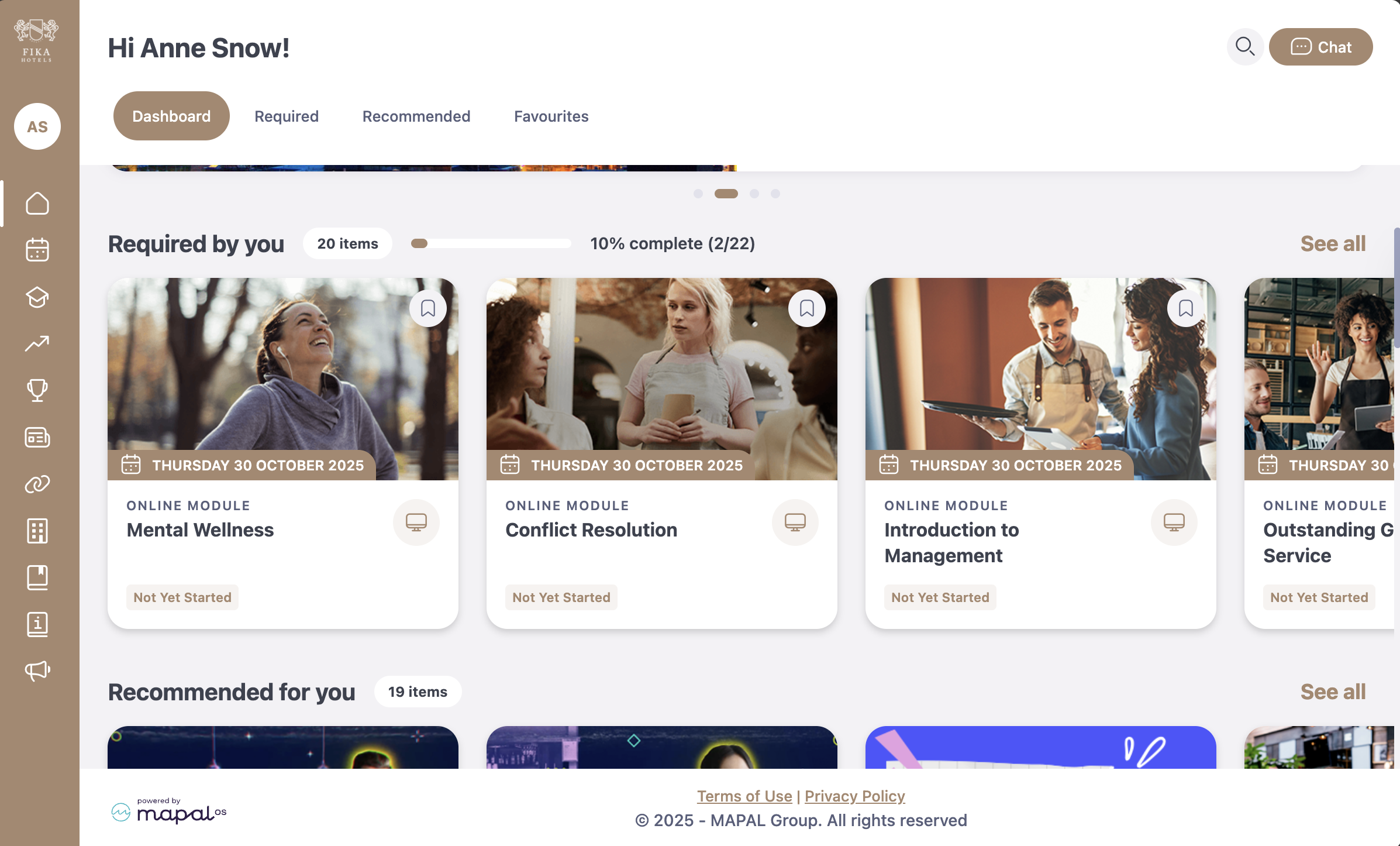
Required by you
This section lists all the learning items that are mandatory and assigned with a due date. When all required items are completed, this section disappears automatically to reduce clutter and help you focus on what’s next. It reappears whenever new required items are assigned to you.
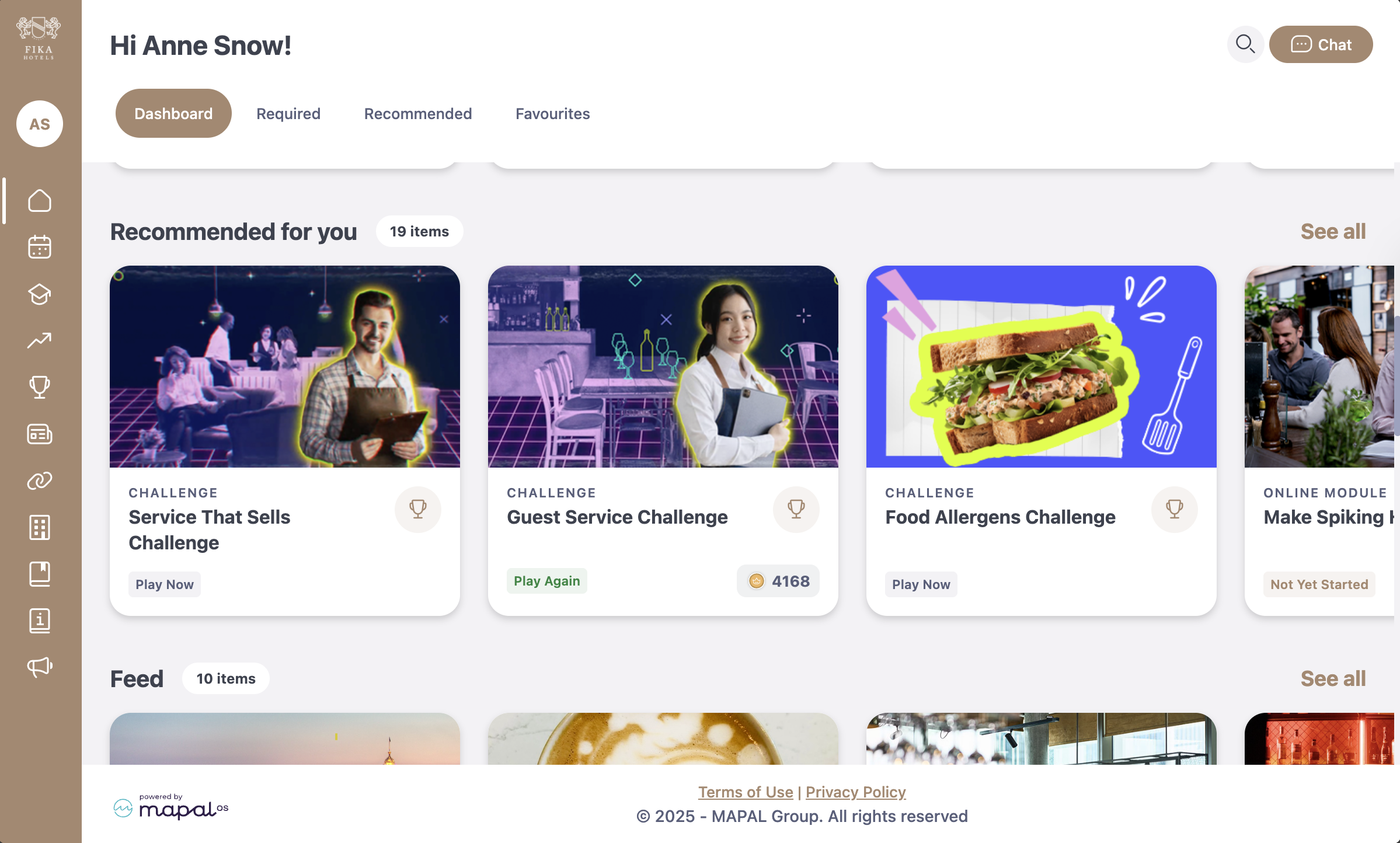
Recommended for you
Displays assigned learning without due dates. These items are recommended based on your job role and duties, but they are not mandatory.
Feed
Shows recent posts from your company, such as announcements, new starter introductions, or internal news. You can like, dislike, or comment on posts.

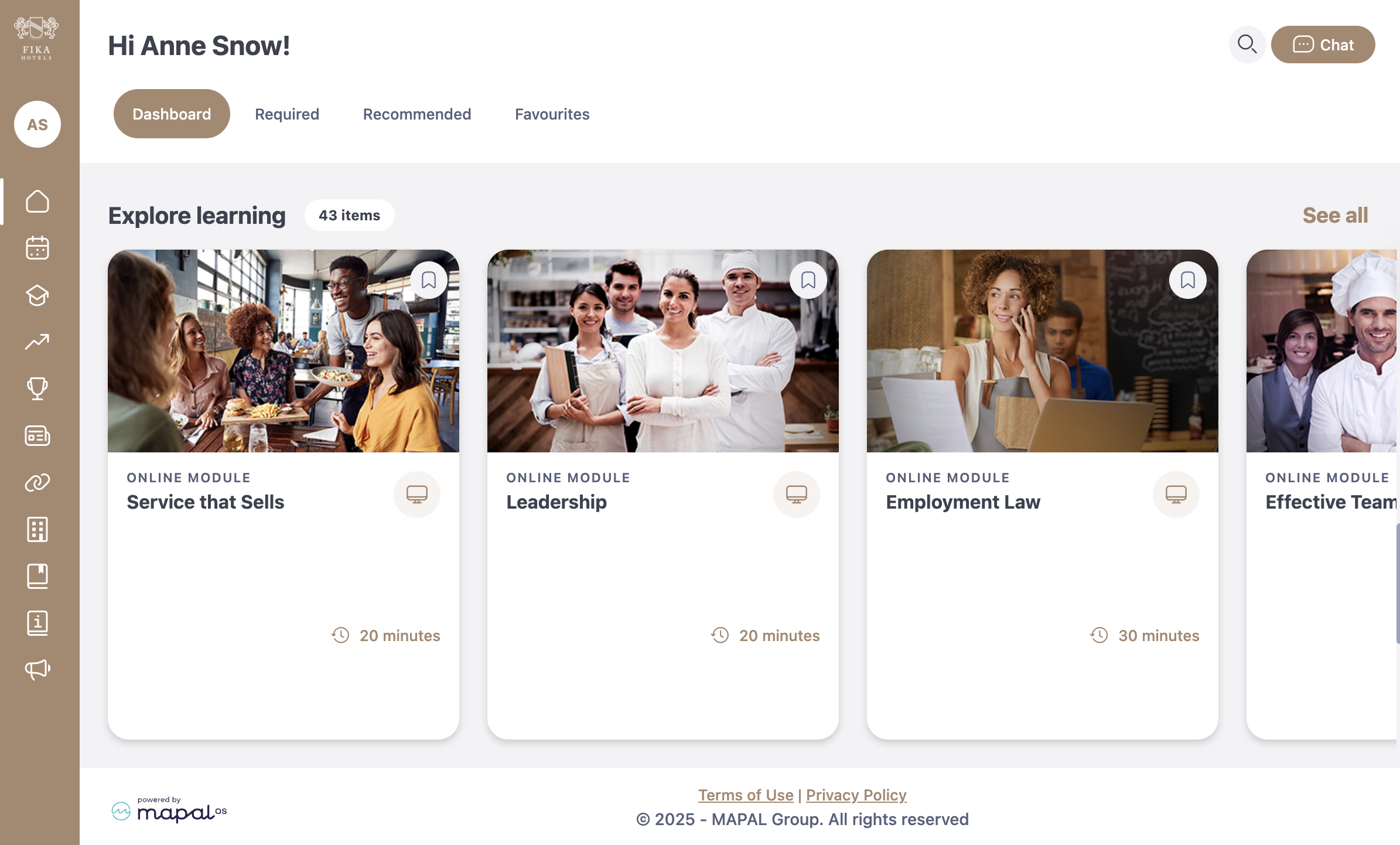
Explore learning
Lists all optional learning available to you, ranging from short videos and external links to complete online modules.
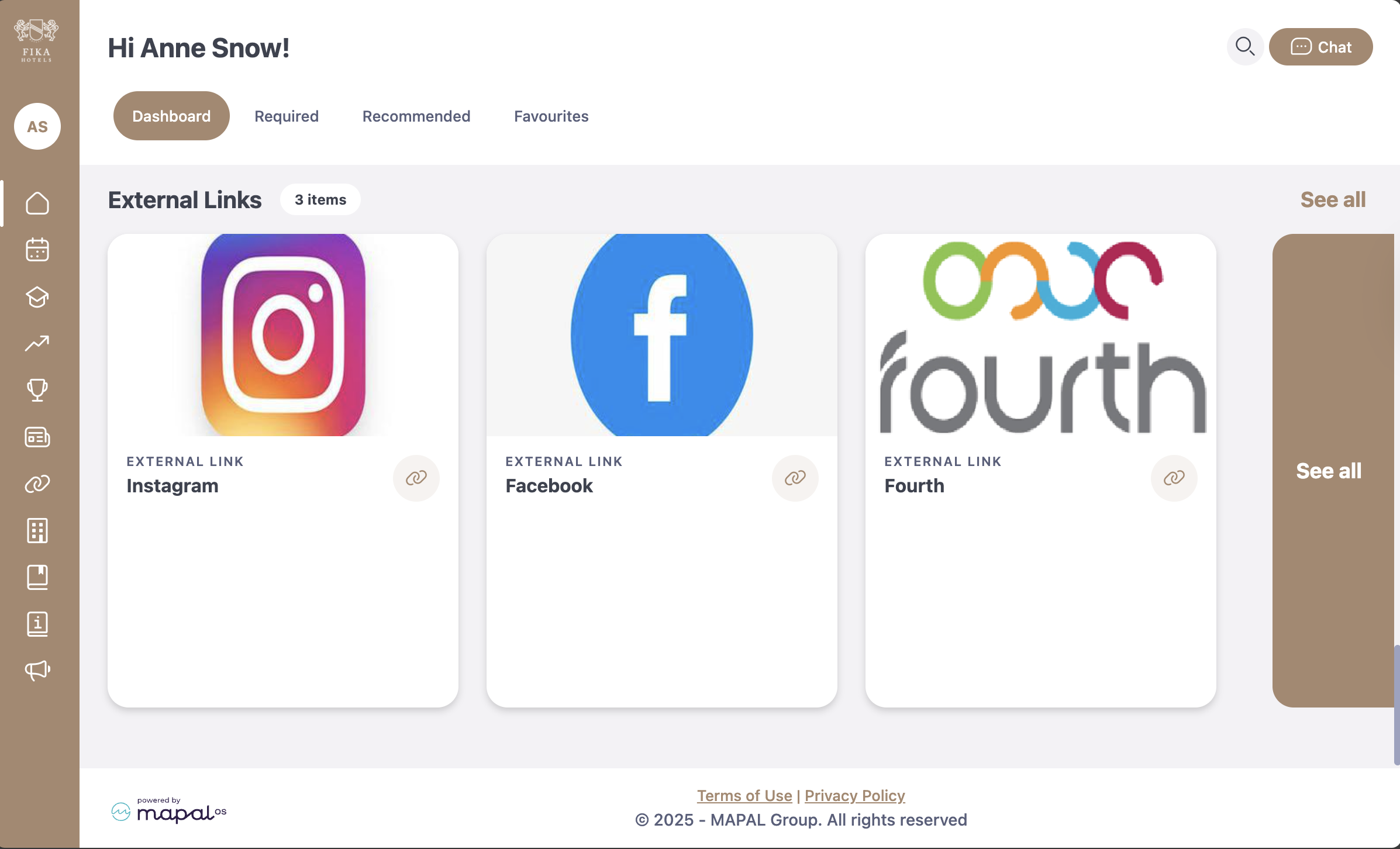
External links
This section gathers all external resources that have been shared with you by your company, such as links to external websites, reference materials, or partner platforms.
Search function
Select the magnifying glass icon to search for colleagues. From the search results, select the three dots next to a name to:
- View their profile
- Give a recognition
- Start a chat
See Search Feed, learning, development, people, or links for more information.

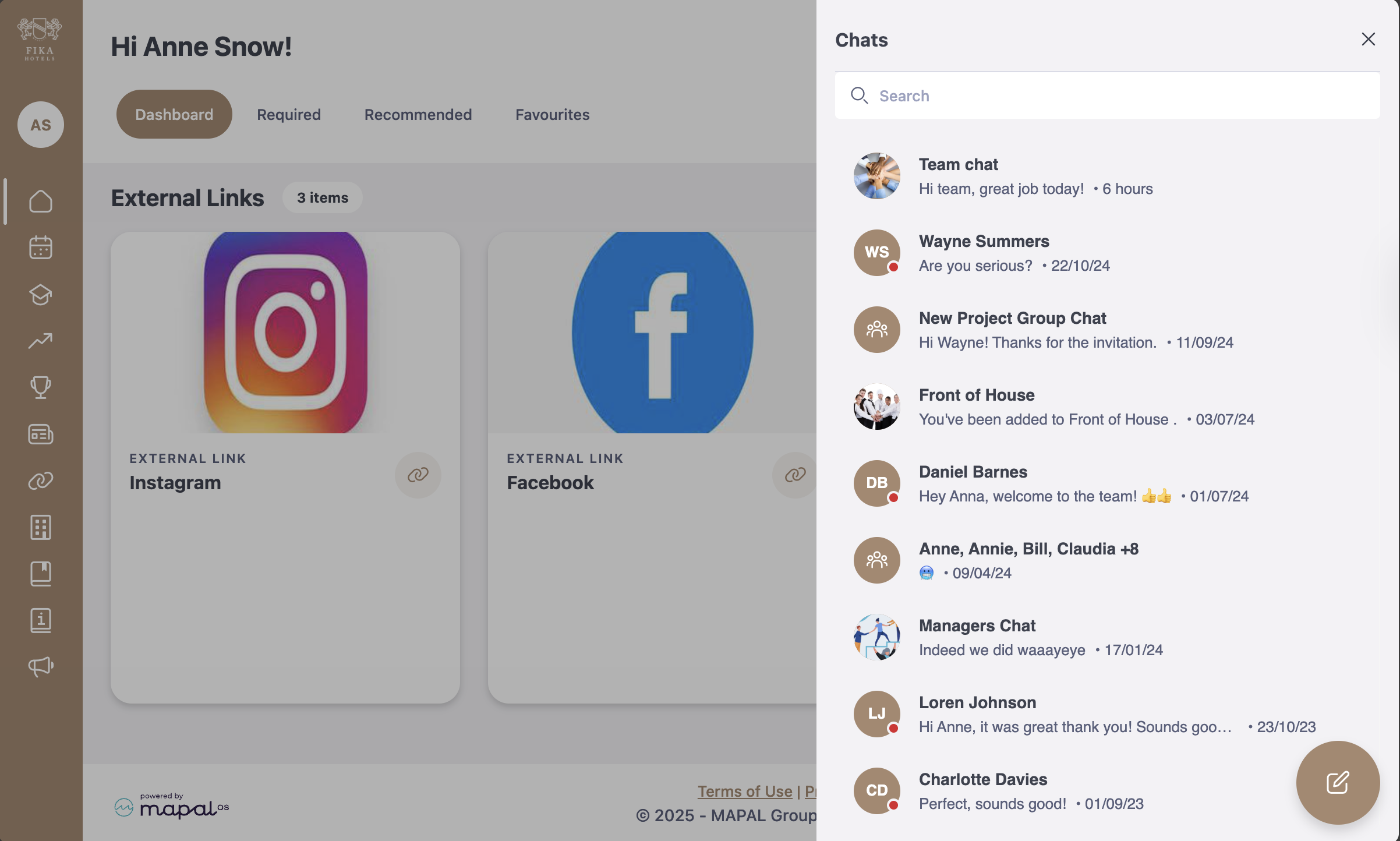
Chat function
Use the chat button to send messages to colleagues or start group conversations. You can:
- Send text or voice messages
- Attach documents, images, or GIFs
- React with emojis
- Flag inappropriate messages
See Chat with your team to know more.
Originally published at https://help.mapal-os.com/mapal-one/getting-started-mapal-one/understand-the-mapal-one-dashboard/
Was this article helpful?
Articles in this section
- Manage your Mapal One user profile
- Search Feed, learning, development, people or links
- Review your Mapal One schedule
- Chat with your team
- Switch from GIR Staff to Mapal One
- View your favourites in Mapal One
- Review your Compliance tasks in Mapal One
- Using Filters in Mapal One
- Understand the Mapal One dashboard
- Access Mapal OS (as an employee)
Add comment
Please sign in to leave a comment.